Create an assignment
-
On Classwork, choose Create ▸ Assignment.
-
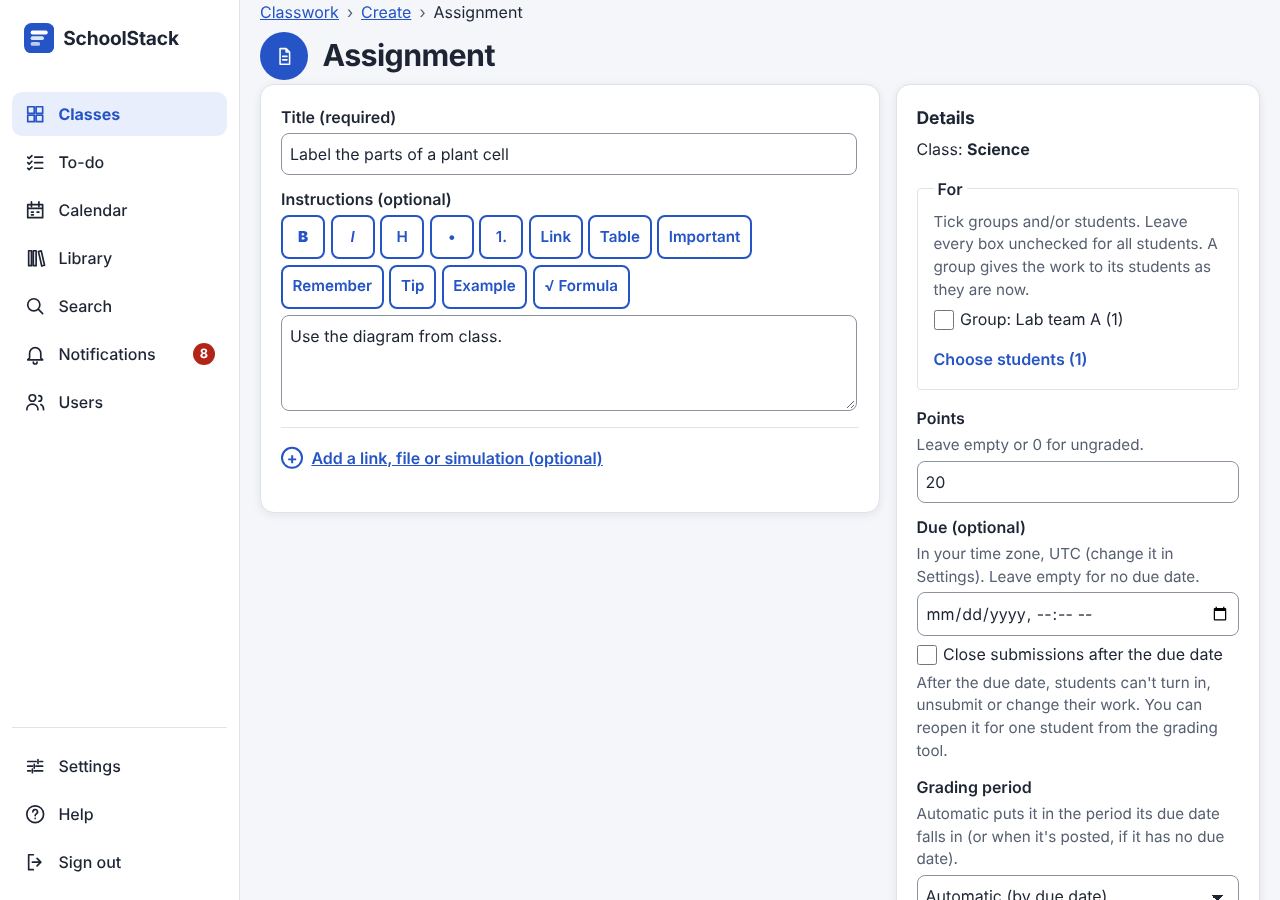
Type a Title (required) and Instructions.
-
Beside them, choose who it's For, the Points, the Due date and the Topic (each box is explained below).
-
If you like, choose Add a link, file or simulation (optional): it opens Attachments, for a link, a file and a simulation (see Files and links).
-
If you like, open More options (optional) for a rubric, other classes to post to, and a time to post it later.
-
Choose Assign to post it now, Schedule to post it at the time you chose, or Save draft to keep it from students (a time in Schedule for is then ignored). (Commands:
work.create,work.update,post.delete.)
The form, box by box
- For: tick students to give it only to them; leave all unticked for the whole class.
- If the class has student groups (see People), they're listed first ("Group: Lab team (4)"): tick one or more to give the work to their students (with any students you tick).
- The work goes to the group's students as they are now; changing the group later doesn't change
who has it. (Commands:
groupsonwork.create,question.create,material.create,quiz.createandwork.update.) - Points: 100 by default; leave empty or 0 for ungraded.
- Due: a date and time in your time zone, or empty for no due date.
- Close submissions after the due date (assignments, quizzes and questions; off by default): once the due date has passed, students can't turn in, unsubmit or change their work. Work turned in on time stays turned in; work not turned in stays Missing, and you can still grade and return it.
- Students still see their work and can post private comments. Before the due date their work and
To-do say "closes at the due date"; afterwards "Submissions closed", and the "due tomorrow"
notification says it closes then. Untick it (Edit) to reopen it for everyone. (Command:
closeAfterDueonwork.create,question.create,quiz.createandwork.update.) - Grade category, Grading period and Topic, if the class has them. The grading period is chosen automatically from the due date unless you pick one.
- More options (optional) folds the three below, so the form stays short; tap it to open them.
- Rubric: No rubric, or a copy of the rubric of an assignment in any of your classes (like
Reuse rubric). To write a new rubric, open the assignment after you create it.
(Command:
rubriconwork.create.) - Also post to (optional): tick your other classes to post the same work there too (shown when you teach more than one active class). It goes to all students in those classes, so leave For unticked.
- Each class gets its own copy, with the topic and grade category of the same name there (if it has one); afterwards, change or delete each class's copy on its own. Works for assignments, questions, materials and quizzes, also with a schedule or as drafts (a quiz keeps the classes you tick until you assign it, after adding its questions).
- Schedule for (optional): a time to post it later. Choosing Schedule before picking a time opens More options and puts you in this box.
Good to know
- A student in two of the classes gets one piece of work: it shows once on their To-do ("Cells quiz · Science 8A, Science club") and they turn it in once.
- Their answers, files, grade and private comments are the same in both classes, so grading or returning it in either class puts the same grade in both Grades pages. On their work it says "This is also your work in …", and on Student work it says "Also in …: the same work".
- If the copies' due dates differ, the earlier one counts for them on their To-do and for late work. (This is for assignments, quizzes and questions posted together; a copy made later with Reuse post is separate work.)
- Open any item to see it, change it (Edit assignment), or delete it; when students have work, grades or comments on it, a page asks first (see Deletes that ask first).
- A draft has an Assign now button and a Schedule form. (Commands:
work.publish,post.schedule.)
Example: Sara chooses Create ▸ Assignment and makes "Label the parts of a plant cell": instructions "Use the diagram from class", Points 20, Due Thursday 23:59, topic "Unit 1: Cells", then Assign. It appears in every student's To-do.
Example: Sara teaches Science to Grade 8 – A and Grade 8 – B. In 8 – A she creates "Lab safety rules", ticks Grade 8 – B under Also post to and chooses Assign: both classes get it.
Related: Topics · Files and links · The grading tool