Rubrics
A rubric lists what you grade in an assignment (the criteria, such as Thesis or Evidence) and the levels of each (such as Strong, 5 points, or Developing, 3 points). Students see it on the assignment before they turn in. Rubrics are for assignments, not questions, quizzes or materials.
Make a rubric
-
Open the assignment and find Create rubric.
-
Leave Use scoring on to give each level Points (or turn it off for feedback only: then each level needs a title instead).
-
Type a Criterion title (and, if you like, a Criterion description), then its levels: Points, Level title, Description.
-
Choose + Add level for another level and + Add criterion for another criterion.
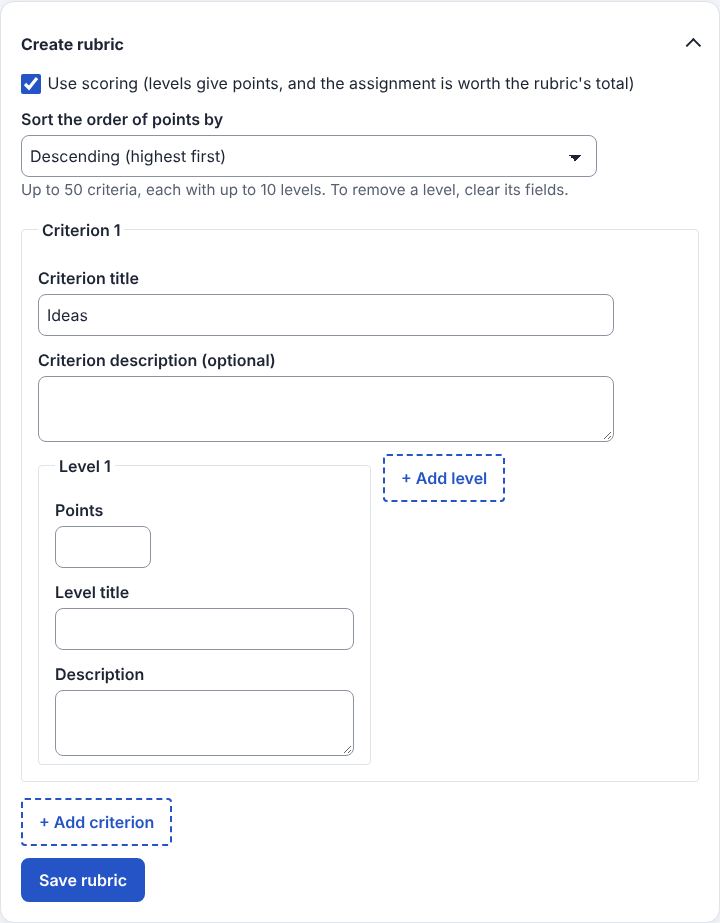
-
Save the rubric. (Command:
rubric.save.)
Grade with a rubric
- Under Student work, choose Open next to a student.
- In the grading tool choose a level for each criterion (or No level) and choose Save grade. With scoring, the levels' points become the draft grade, which you can still change.
- Return the work as usual; the student then sees the levels you chose, next to the grade.
(Command:
rubric.grade.)
Good to know
- With scoring, levels are sorted by points (Sort the order of points by descending or ascending), and the assignment becomes worth the rubric's total (each criterion's highest level, added up).
- You start with one criterion and one level; levels sit side by side on a computer. Up to 50 criteria with up to 10 levels each.
- Clear all of a level's fields to remove it, and tick Delete criterion to remove a criterion.
- Reuse rubric copies the rubric of another assignment in any of your classes. The copy is
separate: changing it doesn't change the original. (Command:
rubric.reuse.) - Delete rubric removes it. Once students can see it, a page asks first. (Command:
rubric.delete.) - Move up / Move down under a criterion change the order of the criteria (their levels and
points stay as they are). (Command:
rubric.moveCriterion.) - Download rubric (CSV) saves the rubric as a spreadsheet: one row per criterion, with its title and description, then each level's title, description and points. Open it in Excel, Google Sheets or Numbers to print it, share it or keep it.
- Upload rubric (CSV) makes the rubric from a spreadsheet in that layout (saved as CSV, or its
rows pasted). Points left empty make a feedback-only rubric. A first row of column names is
fine. (Command:
rubric.import.) - An upload replaces the rubric there was; if a row has a mistake, nothing changes and the message names the row. Write a rubric once in a spreadsheet and upload it to each assignment, or download one, change it and upload it again.
- You can change or delete a rubric until you start grading (give a grade or choose a level); then it is locked, so every student is graded by the same rubric.
- Like the grade, levels you change later reach the student only when you return the work again (for example after they hand it in again). In an archived class, the grading tool shows the levels you gave, read only.
Example: For "Persuasive essay" Sara makes a rubric with two criteria: "Thesis" (Clear 5, Unclear 2) and "Evidence" (Plenty 5, Little 1). The essay becomes worth 10 points. Grading Mona, she chooses Clear and Little: the draft grade becomes 6.
Related: The grading tool · Create an assignment · The Grades page