The Grades page
-
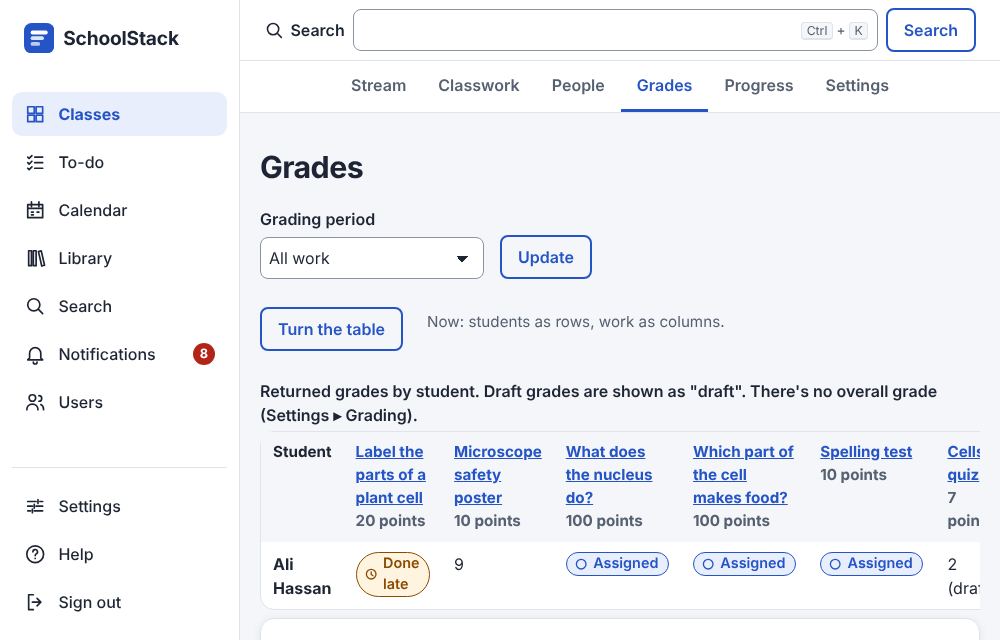
In a class, choose the Grades tab. It shows every student against every piece of graded work: returned grades, draft grades (marked "draft") or the status, and an Overall column when the class has an overall grade.
-
To see each piece of work as a row instead, choose Turn the table (above the table). (Command:
grades.setLayout.) -
Choose Turn the table again to go back.
Good to know
- On a phone, the Grades page shows one card per student, listing each piece of work with its grade, instead of the wide table.
- Turned, the table has a row per piece of work with its title, due date and points, a column per student (first names as headings; screen readers hear the full name, and pointing at a name shows it), then Average (of the returned grades) and Turned in ("18 of 25").
- An Overall row comes last when the class has an overall grade. The work column and the names stay in place while you scroll.
- On a phone, turned, it gives a card per piece of work: due date, how many turned it in, the average, every student's grade, and Show only missing to list just the students whose work is missing.
- Your choice is remembered on your account, for every class, on your phone and computer alike.
Example: Before parents' evening, Sara opens Grades to see every student's returned grades and spot missing work at a glance.
Example: After a test, Sara chooses Turn the table to see the test as one row: "Average 15.5 / 20, 24 of 25 turned in", and on her phone she ticks Show only missing on the test's card to see who hasn't done it.
Related: Download grades · Grading settings · The grading tool